Subscription Management
Description
As a Knowledge Base Admin, I am able to view all User subscriptions so I can manage access to each learning zone.
Applicable User Roles
List of roles that have access or can use this feature.
Knowledge Base Admin
Where to find Subscription Management?
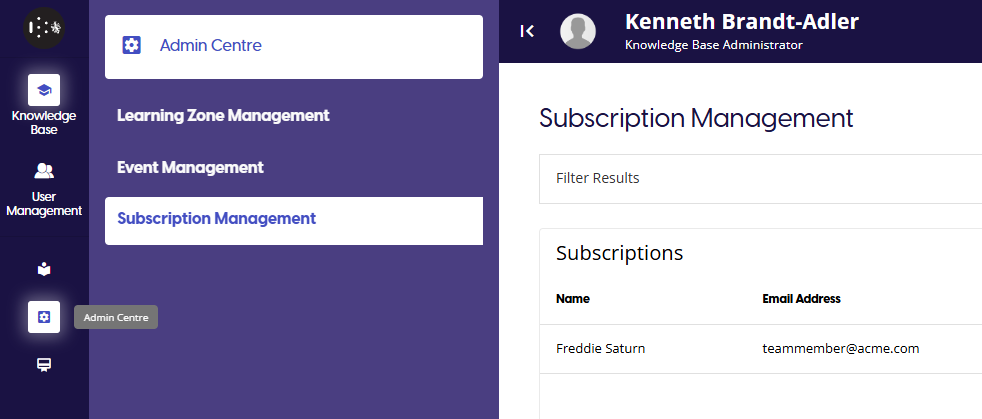
To access the Subscription Management page, first go to the Admin Centre in the Knowledge Base portal, then select the Subscription Management option from the left panel.
What is Subscription Management?
The Subscription management page allows you to view and manage the current subscriptions to any Learning Zone. You will be able to select any Learning Zone and alter any individuals access to that Learning Zone.
How To
Select a Learning Zone
You can select any Learning Zone from the left panel to view the subscriptions to each Learning Zone. Only published Learning Zones will be displayed, so if you cannot see a Learning Zone ensure it's current status is Published.
Filter Results
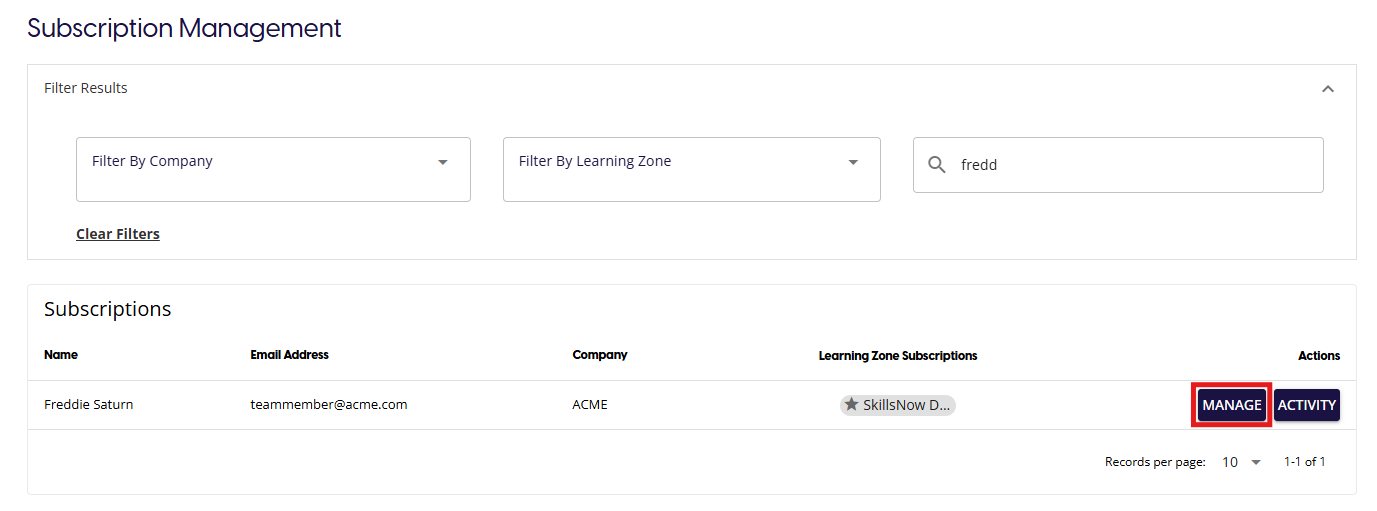
Once you have selected a Learning Zone, the main table will show all users who have a currently active subscription to the selected Learning Zone. If you wish to filter these results, click on the Filter Results section to show all the attributes you can filter by:
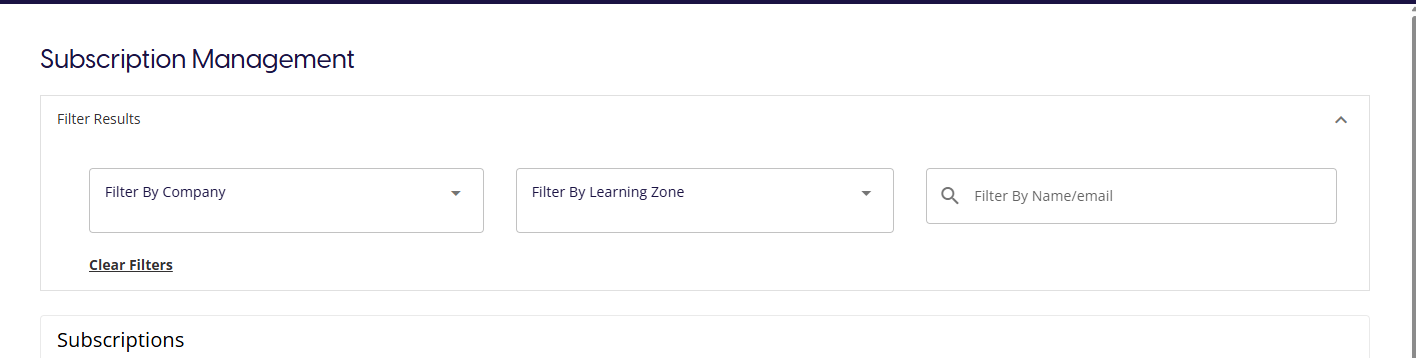
- Filter by Company - Select from a list of available Company user groups. Can only select one company at a time.
- Filter by Learning Zone - Select from a list of available Learning Zones. Can only select one Learning Zone at a time.
- Filter by Name/Email - Enter a term to filter through the name & email fields.
You can use a combination of the three attributes when applying your filters. Once you have made your filter selections, the main table will update automatically to show matching entries.
To remove all filters currently applies, click on 'Clear Filters' to remove them.
View User Activity
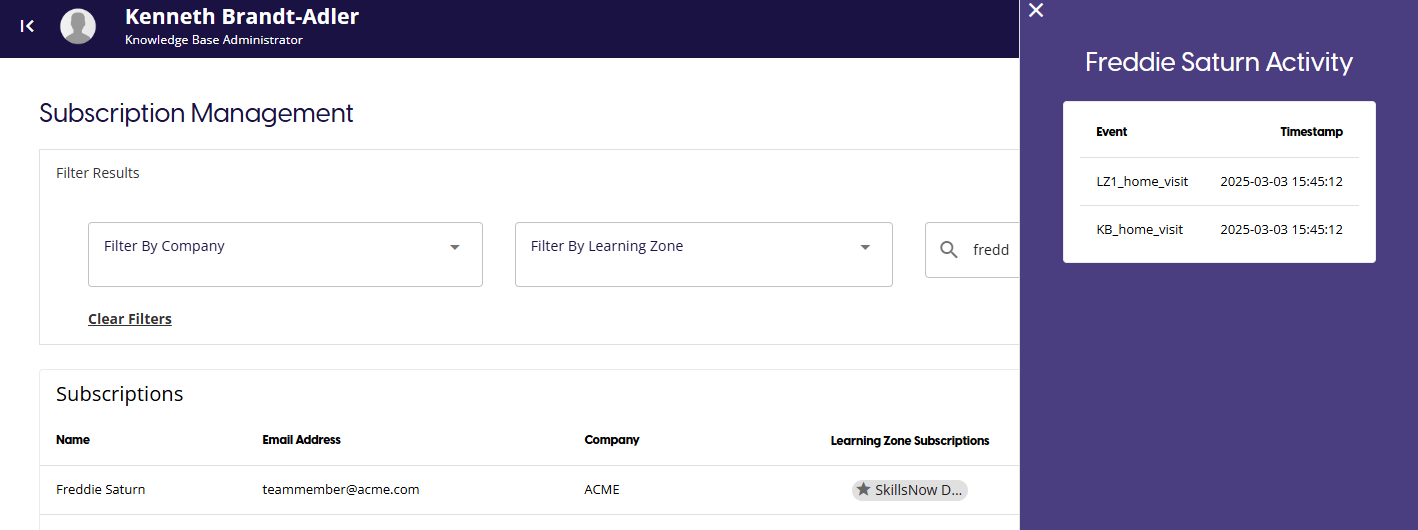
If you wish to see what actions an individual has been taking in the Knowledge Base portal, you can view this with the Activity button in the Subscriptions table.
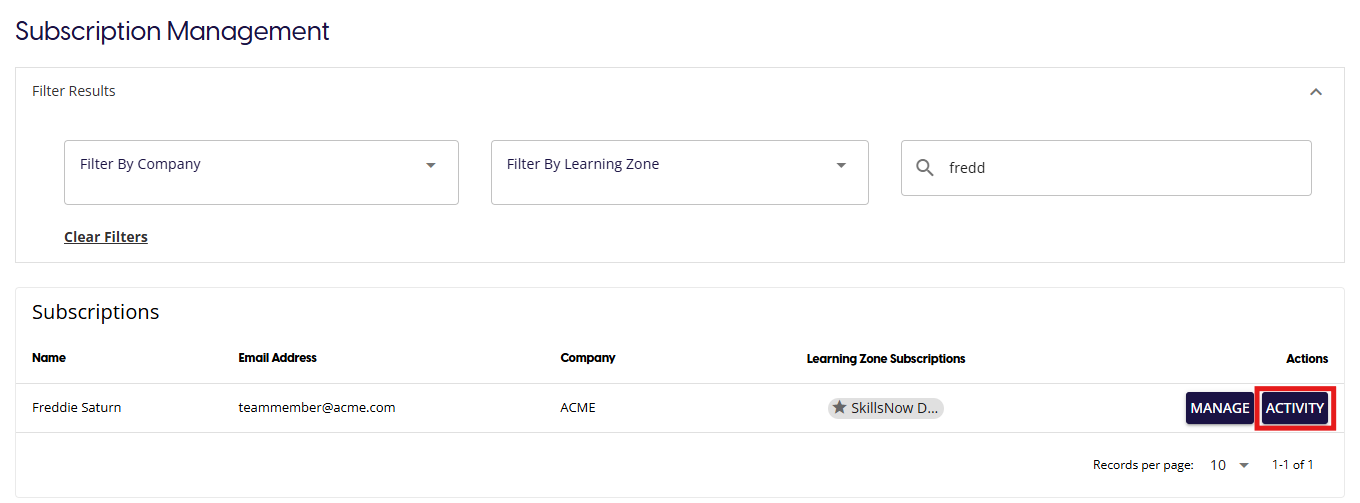
Once you have found the user in the table, click on the Activity button to display an overlay of the users most recent Knowledge Base activities.
View and Manage an individuals subscriptions
Click on the Manage button to be taken to a particular users Subscription Management page. From here you will have the ability to edit manage each of the subscriptions individually.
This will take you to the User Subscription page, where you will be able to see all the users subscriptions in a table.
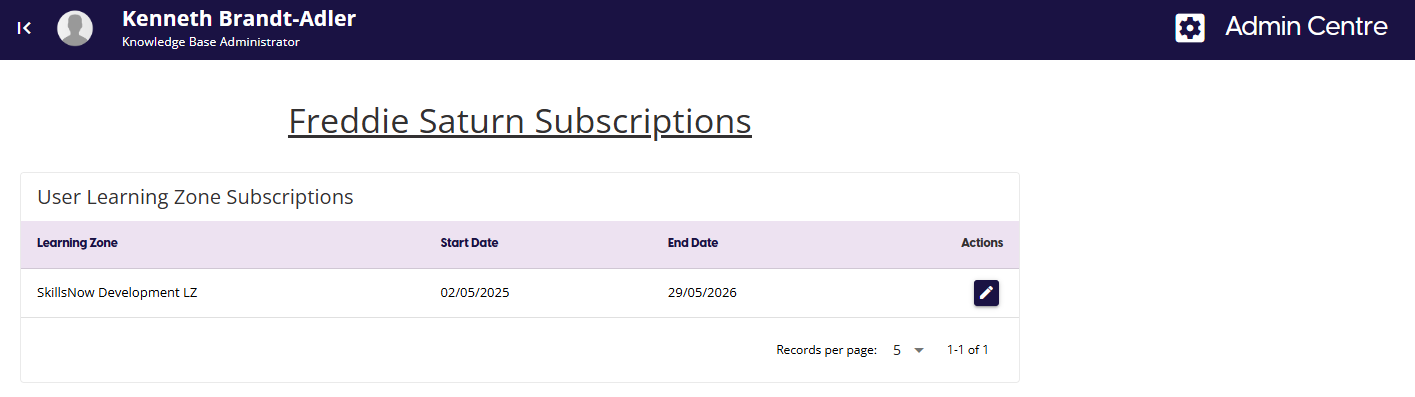
In the Actions column, there is an Edit End Date icon which allows you to alter the end date of the users subscription to any Learning Zone. When you click on it, a calendar dialog will open allowing you to select a new end date for the subscription. The new end date cannot be in the past.
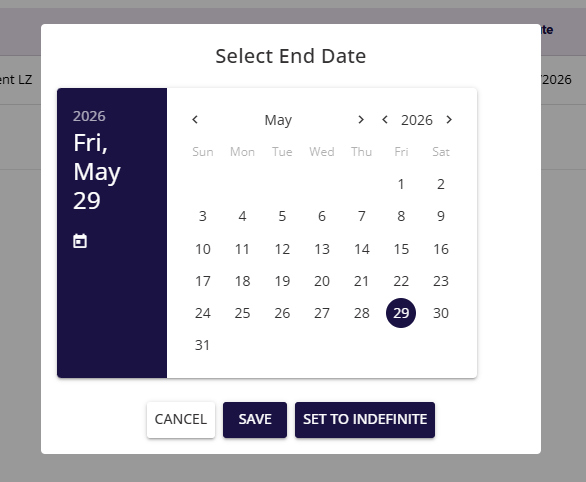
To select a date, click on the desired date and click on Save. If you wish to discard any changes you may have made and close the dialog, click on cancel. If you wish to give the user permanent access to Learning Zone, click on the Set to Indefinite option.
When you set an indefinite expiry date, the End Date value will appear as 'N/A'
You cannot remove a users subscription from this page. To do that, you must remove their group access from User Management.
User Management - Managing User Subscriptions[link]